CAPITAL TRAINERS
  • Home
  • GST Practical Training
  • Income Tax & TDS Training
  • Tally Prime
  • Excel Course
  • Course Registration
  • Contact
  • Capital Trainers Courses
  • Best GST Practical Training in Hyderabad I Best GST Training Institute in Hyderabad

GST Registration Procedure

12/6/2019


GST Registration Procedure

​Step By Step Guide: GST Registration Online for New User on GST Portal
Online GST registration application is an essential step under GST regime for every taxpayer or business owner whose annual turnover is above 20 lakh. Only after GST registration online processing, the business owner gets a GSTIN number which is a unique number. A taxpayer needs the GSTIN number at every stage of return filing, bill generation and invoice processing so it becomes the prominent part of GST filing. For all this process one must go to the GST registration online India official website.

In the 32nd GST council meeting, the members increased the GST threshold limit from 20 lakh to 40 lakh as per suggested by GoM. The single condition is eligible for Kerala & Chattisgarh that which limit to remain either 20 lakh or 40 lakh.
Here is the simplified step-by-step procedure for GST registration:
Picture
We have divided the whole procedure of GST registration online into four sub-parts in order to make easy understanding of the complex procedure of GST registration online process.

Part 1 in GST Registration Process:
Step 1: Enter the GST official website link in URL. Click here https://reg.gst.gov.in/registration/.
Step 2: Click on ‘Services’ tab provided in the main menu. Three options will open in drop-down list such as “Registration”, “Payments”, and “User Services”.
Step 3: By hovering the mouse on “Registration” will open more options.
Step 4: Click on the first option which is “New Registration”. It will open the new form in the same window.
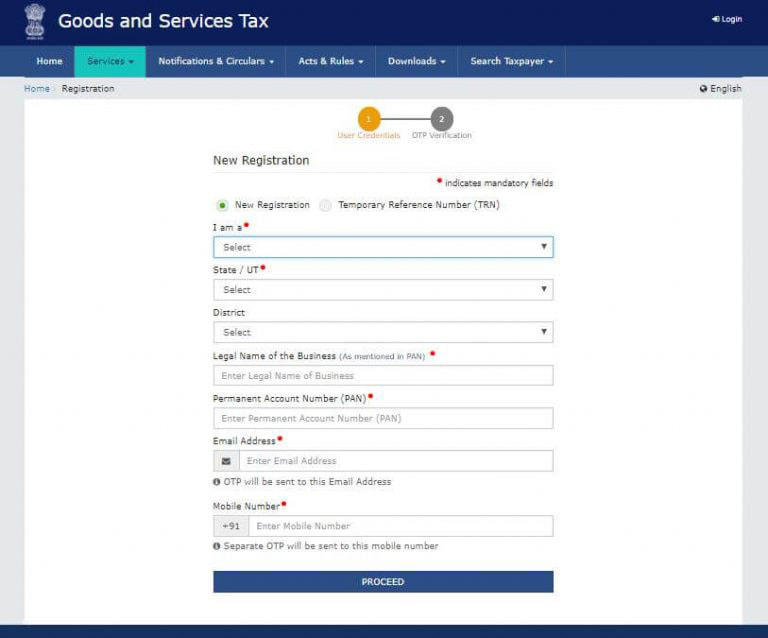
Step 5: Now enter the details regarding whether you are a Taxpayer/GST Practitioner/Tax Deductor, the State/UT and District you belong, Name of the taxpayer or tax practitioner as mentioned in the PAN card, PAN number, Email ID, and Mobile Number. At the end of form, enter characters as displayed in the CAPTCHA image and click on “PROCEED”.


Picture
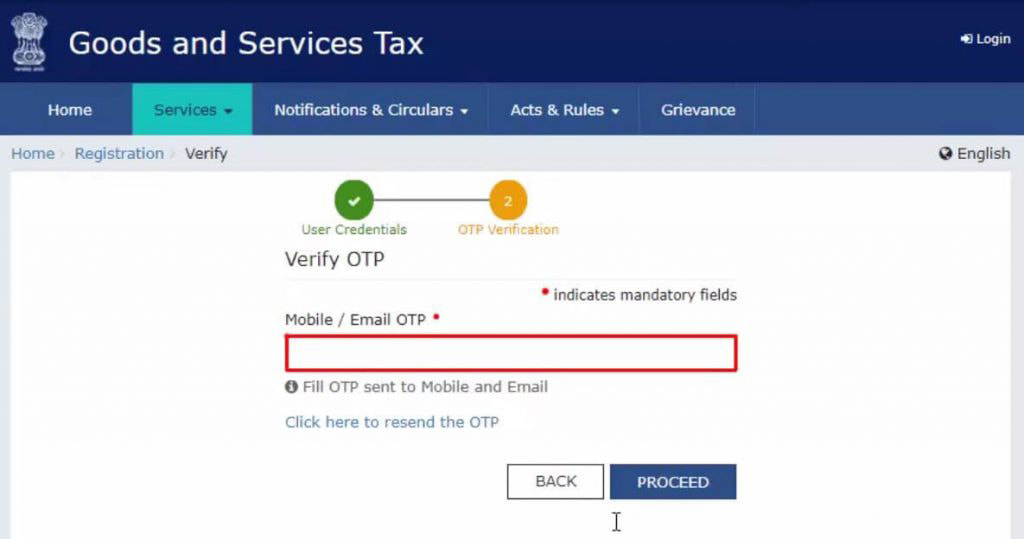
Step 6: An OTP will be sent to the provided mobile number and email ID in step 5. Enter the OTP received and click on “Continue” button.
Picture
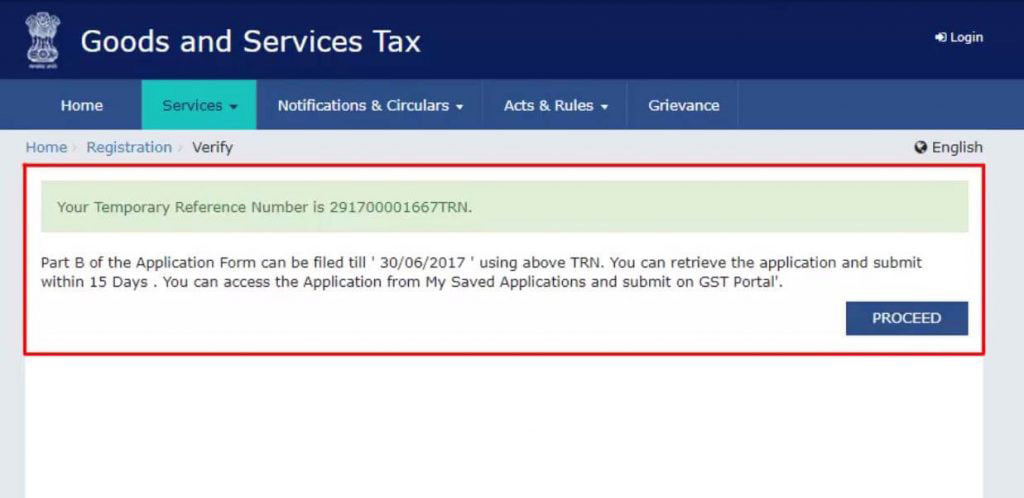
Step 7: A TRN (Temporary Reference Number) will be shown on your screen and the same TRN number will also be sent to your provided email ID and Mobile Number. Save the TRN number for future requirements.
Picture
Part 2 for Finding Tracking Temporary Reference NumberStep 1: Go back to GST official website.
Step 2: Again select “Services” tab.
Step 3: Select “Registration” from the drop-down menu under “Services” tab and click on “New Registration”.
Step 4: Choose the option “Temporary Reference Number (TRN)” and after selection it the dot will be filled by green colour and new page will open.
Step 5: Enter the TRN number provided in Part 1 and given Captcha characters.
Picture
Step 6: Click on “PROCEED” button.
Step 7: You will get an OTP on the registered mobile number and email ID. Enter the OTP in prescribed field and again click on “PROCEED”.
Picture
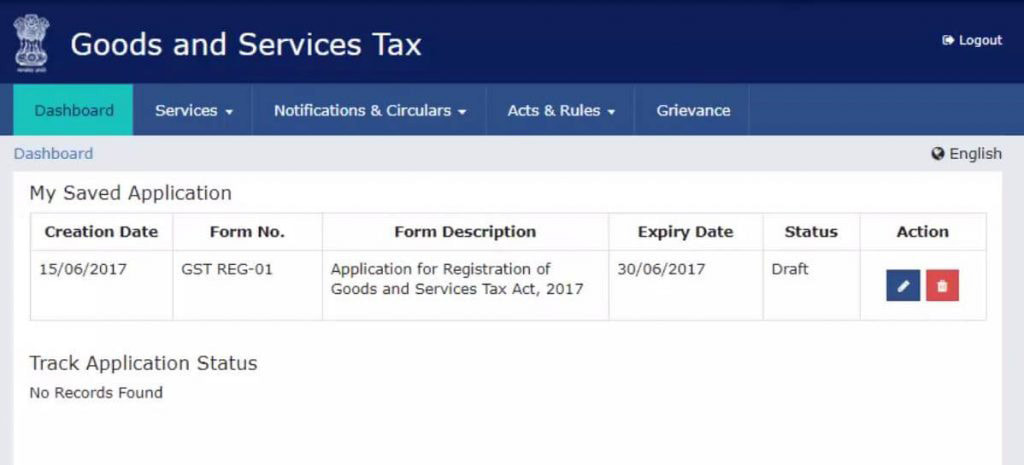
Step 8: The draft format of the application will be shown on your screen. Now click on the Edit icon
Picture
Part 3 for ARN Status Verification
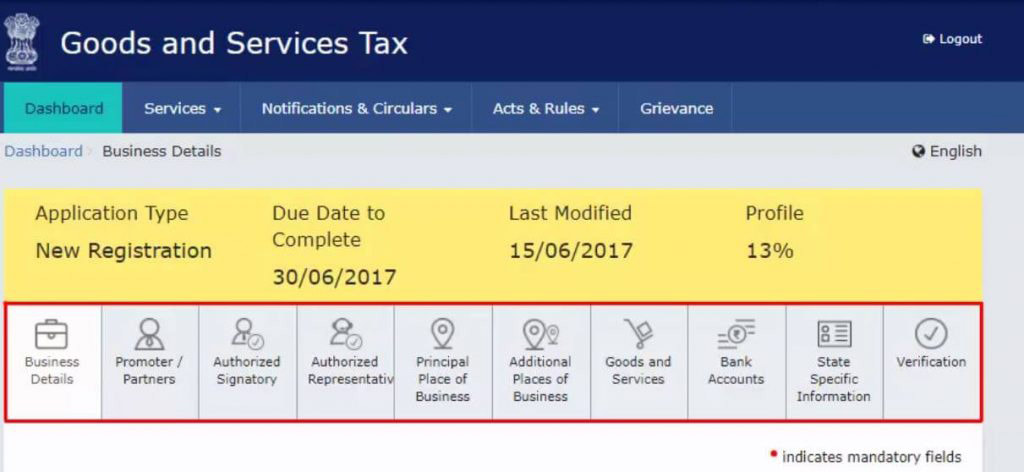
​Step 9: The new page will be displayed on your screen. There are 10 sections to fill the required details and upload the requested documents for this particular section.
You will need following GST registration documents to keep handy with you in the scanned format:
  • Photographs
  • Constitution of the business owner
  • Identity proof of the place of business
  • Bank account details
  • Authorization form
Picture
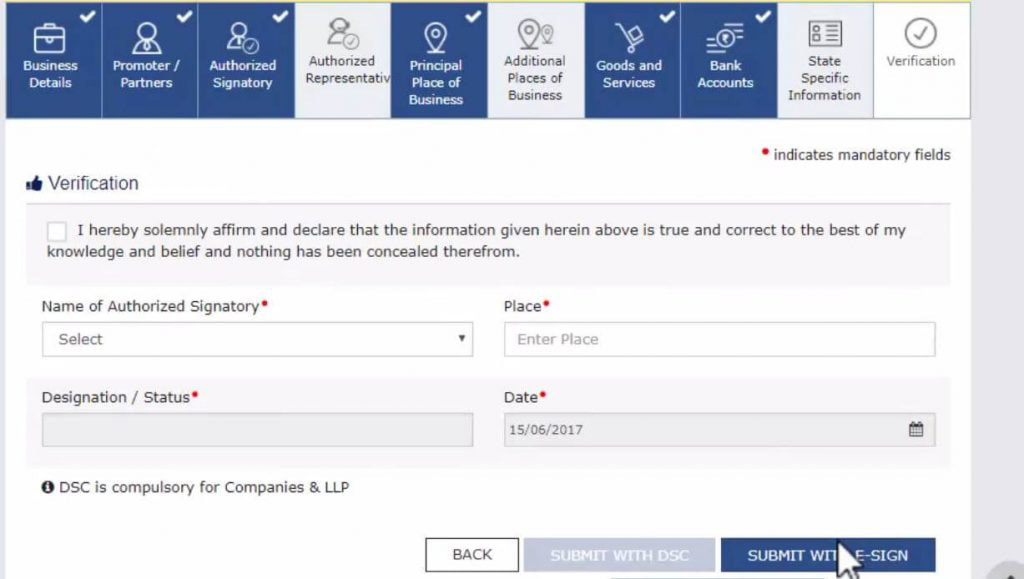
Step 10: After uploading all the details, go to Verification page
Step 11: Select the Declaration stated and mark the tick
Step 12: Submit the application using DSC, e-Sign (OTP will be sent to Aadhaar linked mobile number) and EVC (OTP will be sent to registered mobile number)
Picture
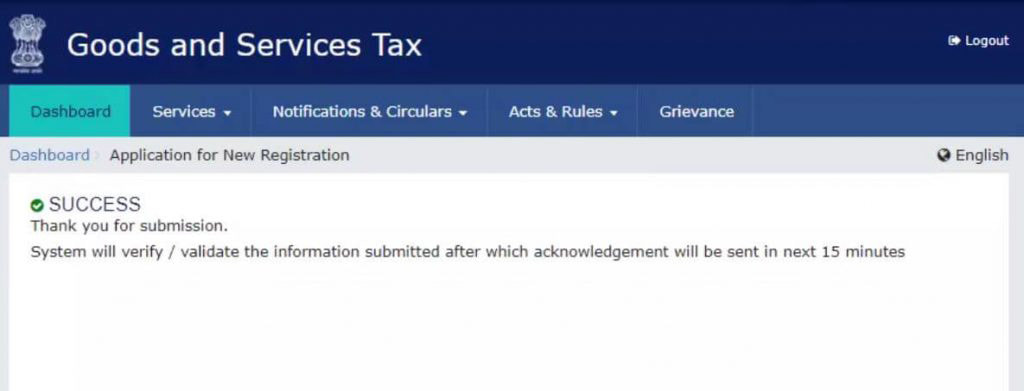
​The message of successful completion of registration will be shown on the screen and an ARN (Application Reference Number) will be sent to the registered mobile number and email ID.
Picture
Part 4 for Checking The Status online of GST Registration by ARN
The applicant can check the status of an application for registration by entering the ARN, for this:

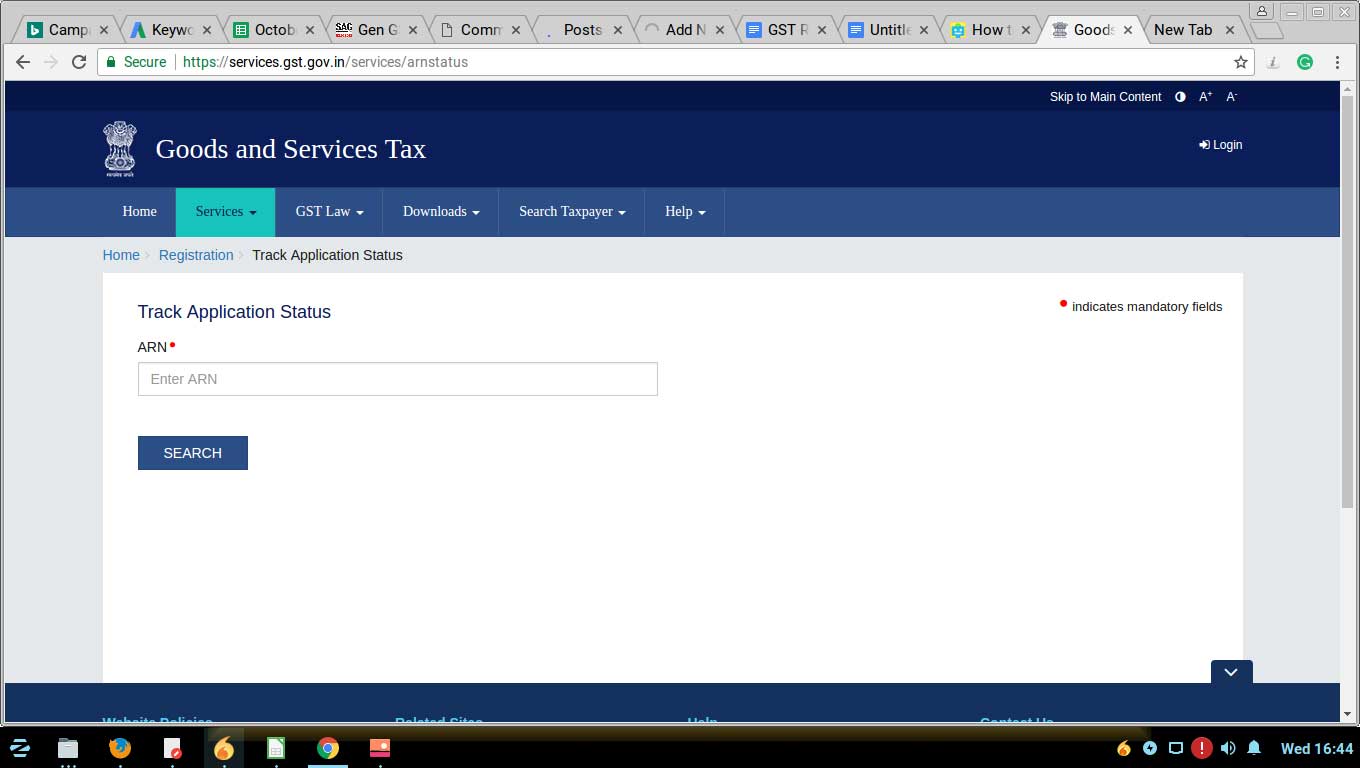
Go on GST Portal> Click on Services tab> Select “Track Application Status” under Registration option
Picture
Now Enter the ARN number >Click on “Search” button
Picture
The status will be displayed along with department remarks

Capital Trainers - Hyderabad


Comments are closed.

    Author

    Capital Trainers

    Picture
    Picture

    RSS Feed

Capital Trainers
The Best & Biggest Institute for Practical Training on GST & Income Tax.
GST Course
Income Tax Course
Tally Prime with GST Course
Advanced MS Excel Course
Call Us:
9491897638 (Admissions) / 9848179899 (After Joining Support) 

© Copyright Capital Trainers 2013-25.
All rights reserved.
  • Home
  • GST Practical Training
  • Income Tax & TDS Training
  • Tally Prime
  • Excel Course
  • Course Registration
  • Contact
  • Capital Trainers Courses
  • Best GST Practical Training in Hyderabad I Best GST Training Institute in Hyderabad